Guides & Tips
Game changing features for Super Users
Level matching, loudness metering and other features power users rely on.

Technical details and why they’re important.
Bounce Boss measures every reference, mix and master you upload, so you can make informed decisions and get better results. Next to the waveform you'll find two readings: Integrated Loudness, in LUFS, and True Peak, in dBTP. Click either of them, or the file's format, for the file's full details: its format, what it was made with and when, its loudness range, what level matching does to it, and what changed since the previous version.
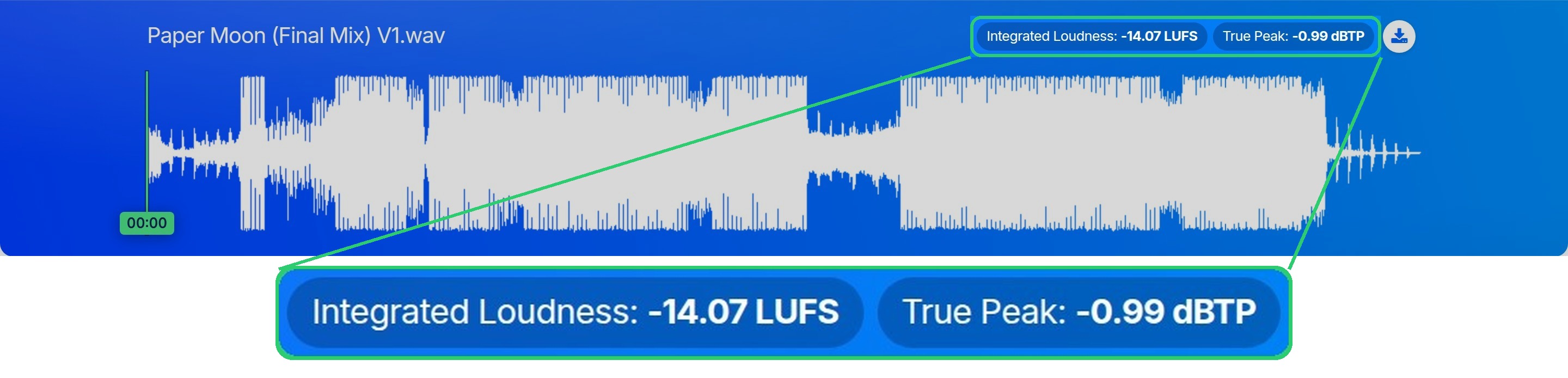
How those readings are measured, what they mean, and what level matching does to playback are in their own guide: Loudness, true peak and level matching.
Client Project Invite Link
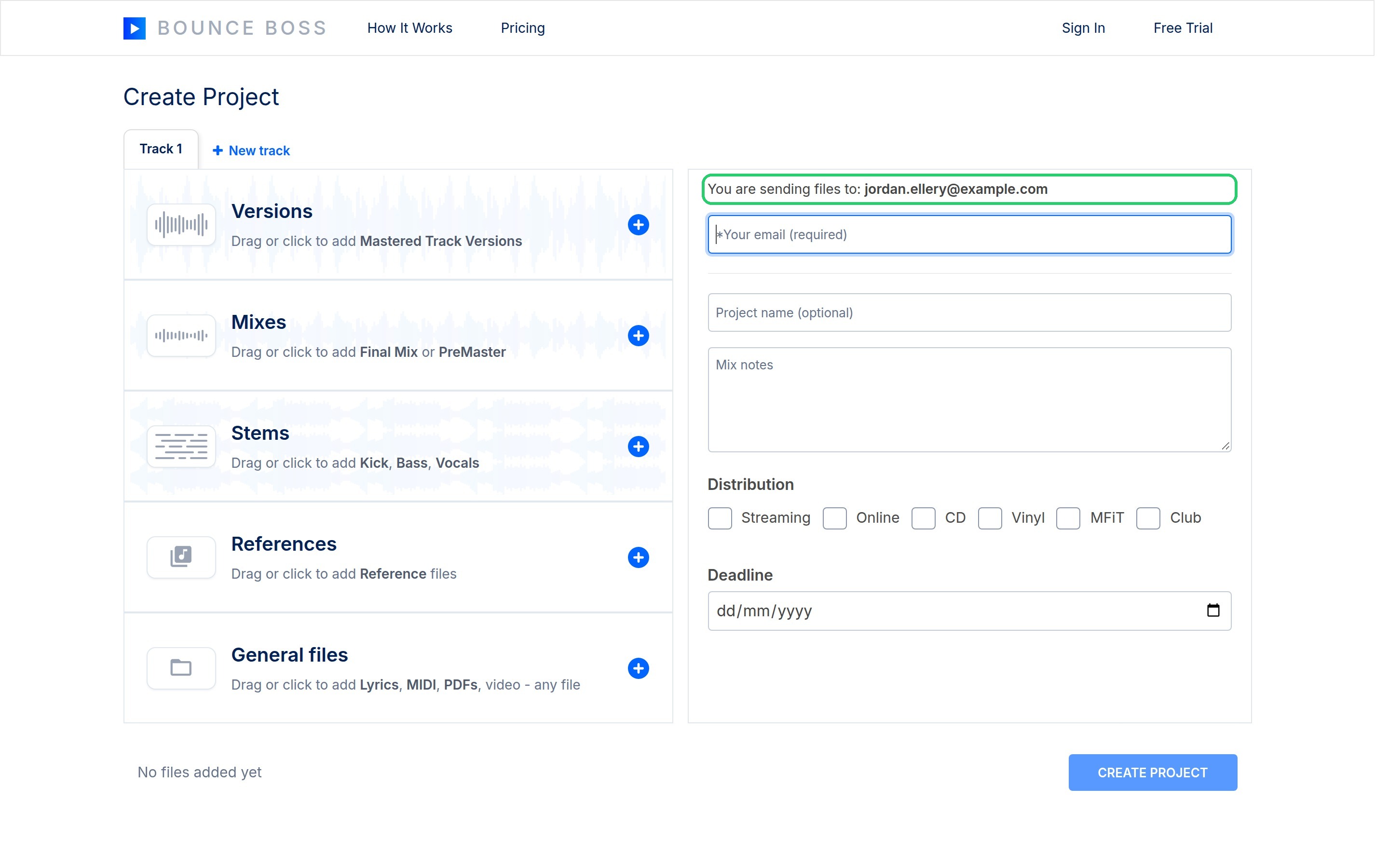
Wouldn’t it make you more efficient if audio files arrived in your inbox already organized? With Bounce Boss you can send your clients, collaborators or ANYBODY a link to upload audio files to your Bounce Boss account. To find your invite link, click your email address in the top right corner of Bounce Boss, then click Account, and you’ll see your ‘Client Project Invite Link’. When you send this link, your collaborators will see your upload page.
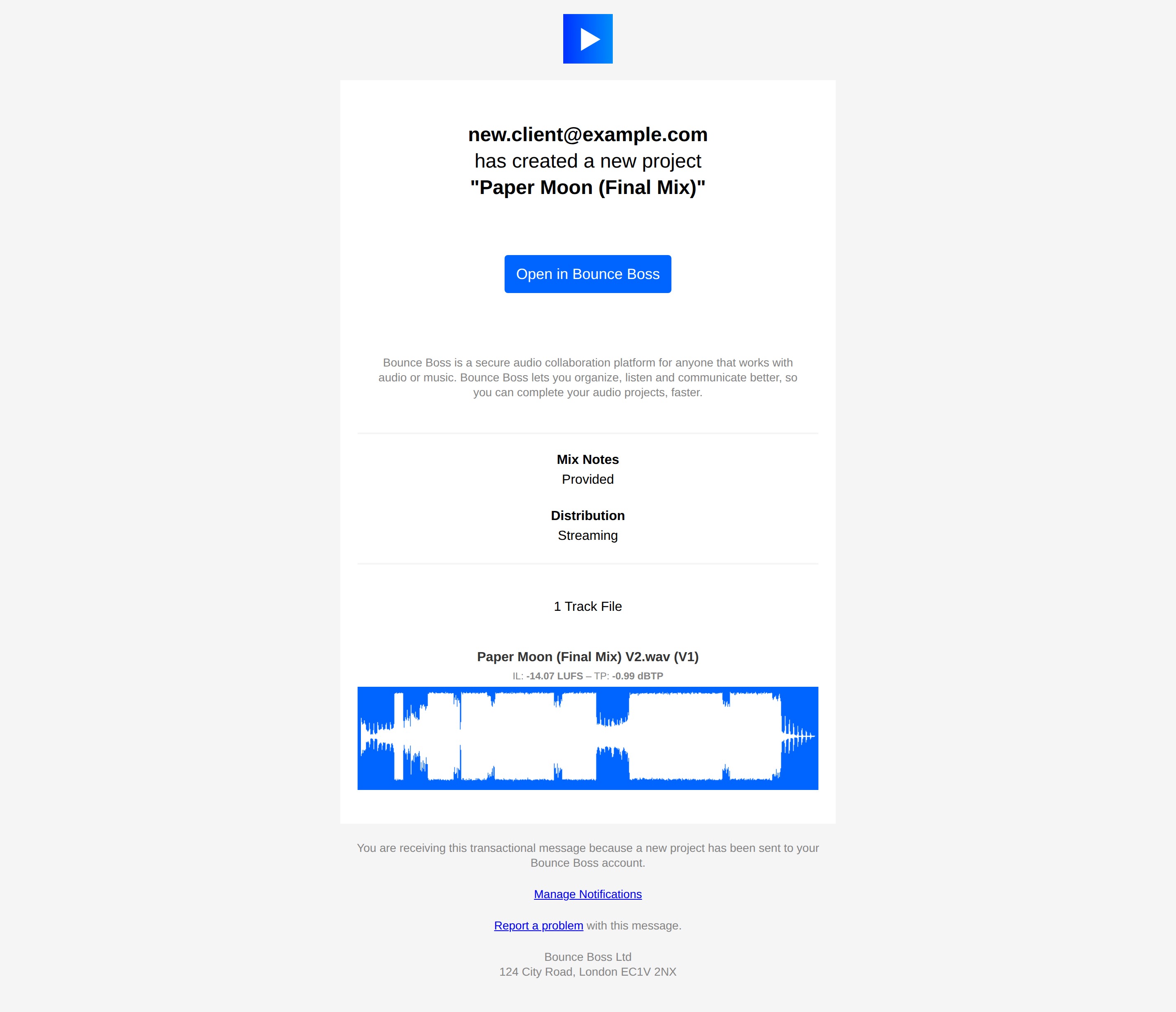
Once a project is initiated from this page, you’ll receive an email with the mix notes, distribution, deadline, the LUFS and dBTP measurements of the files uploaded, AND a visual of the waveform. All the information you need to hit the ground running.
Permissions
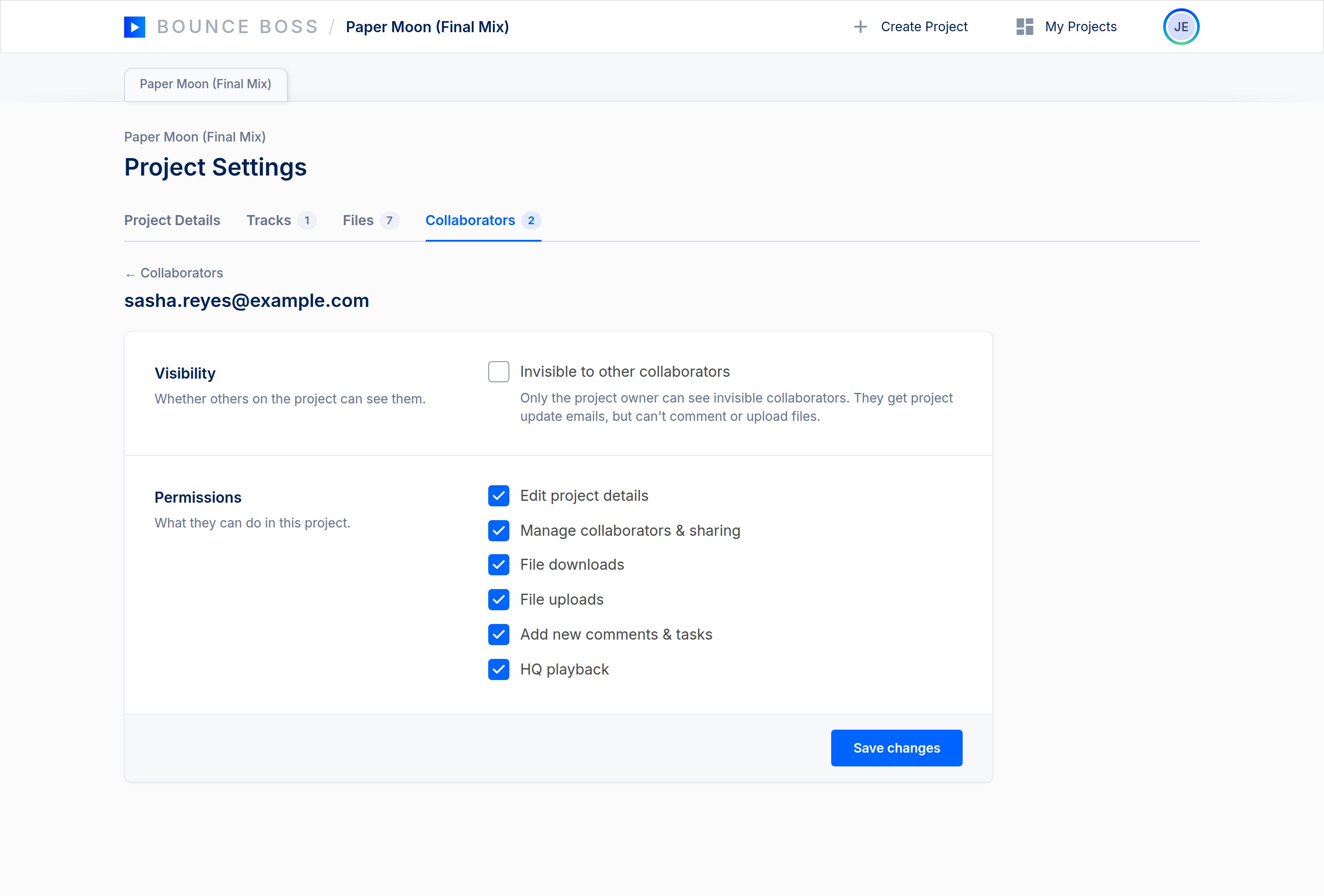
You have total control over the accessibility of your projects. You can choose whether your collaborators can:
- Edit the project details (deadline / distribution / mix notes etc)
- Add / Remove collaborators (Collaborators can’t remove the owner)
- Download Files
- Upload Files
- Add New Comments & Tasks
- Access High-Quality Playback
To access permissions click Project Details > Collaborators > Edit (pencil icon). You can then tick/untick whatever permissions suit the circumstances of your project.
On the same screen you can also mark a collaborator as Invisible - they'll be hidden from everyone but you, can't comment or upload files, but will still receive project update notifications. Handy for keeping a quiet eye on a project without the rest of your collaborators knowing.
Comments
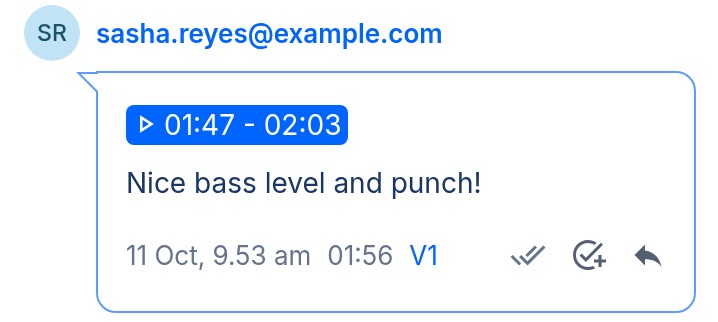
The foot of each comment is stamped with useful information to help you communicate as clearly as possible.
Time Stamp
The time stamp shows the point in the waveform at which the comment was left. Your collaborator will hopefully select a loop or write the timestamp in the comment when they want to be specific. If this is omitted and you want to know what they were listening to when they wrote the comment you can click the timestamp at the foot of the comment.
Which File?
Each comment is linked to a specific file (R1, M1, V1 etc) You can click the label to jump to that specific track.
Read Receipts
The ticks in each comment show whether the comment has or hasn’t been read. Two ticks mean the comment had been read by all collaborators in the project. One tick means it has not been read by all collaborators in the project.
Task
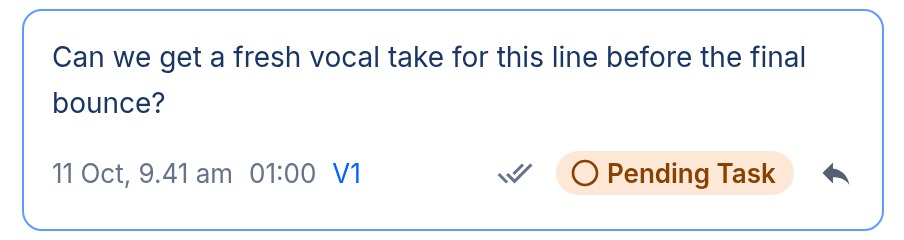
Click the add task icon to flag a comment as a task for a collaborator to action - it'll show as a pending task until marked complete. Click "Pending Task" to mark it complete, or Shift-click it to remove the task.
Reply
Sometimes the conversation can get complicated. Hit ‘Reply’ to make it clear what comment you are addressing.
Plans start from just $5 per month
Join other audio and music professionals who are already working smarter with Bounce Boss
No credit card required

 EU West
 EU Central
 Canada
 US East
 Asia Northeast
 Asia Southeast